How Do I Transfer Photos from an Old Phone to a New One
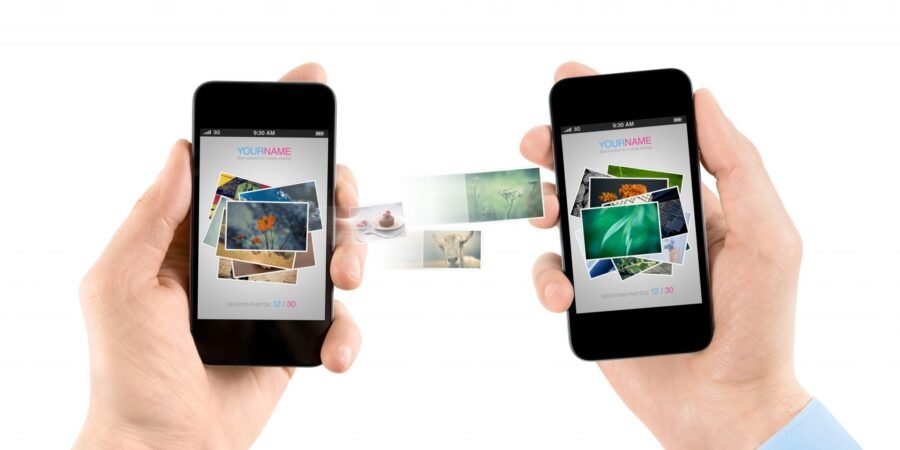
How do I transfer photos from an old phone to a new one? New phone day is exciting right up until you realise a decade of photos is sitting on the old handset. I’ve done this migration more times than I can count — for myself, for parents, for friends — and there’s always a method that fits, whatever combination of iPhone and Android you’re dealing with.
Here’s every reliable way to move your photos, from the effortless to the belt-and-braces.
How Do I Transfer Photos From an Old Phone to a New One?
iPhone to iPhone (easiest of all): put the phones next to each other, turn on the new one, and follow the Quick Start prompts — everything, photos included, transfers directly. Or restore from an iCloud backup during setup. If your photos are in iCloud Photos, they’ll simply appear once you sign in; just stay on wifi and give it time.
Android to Android: Google’s setup flow offers to copy everything from the old phone via cable or wifi — accept it, and your Google Photos library comes along. Use a cable for speed if you have thousands of photos. iPhone to Android: connect the phones with a cable during Android setup (you may need a USB-C to Lightning adapter) and choose what to copy; Google Photos then keeps them synced going forward.
Android to iPhone: Apple’s “Move to iOS” app (free on the Play Store) transfers photos, messages and more over a direct wifi connection during iPhone setup. It’s slower than cable but works reliably. Do it during initial setup — afterwards it’s much more fiddly. How Can I Tell If an Online Shop is Genuine Before Ordering
The Cloud and Cable Fallbacks
If the automated tools misbehave, go manual. Google Photos (free on both platforms) is the universal translator: install it on the old phone, back everything up on wifi, install on the new phone, sign in — done. This is my recommended method for cross-platform moves because it’s dead simple and gives you a cloud backup as a bonus.
Cable to a computer is the old-school reliable route: plug the old phone into a PC or Mac, copy the DCIM/Camera folder, then copy it to the new phone (or import into the Photos app). Slow, but it works with zero internet and gives you a proper backup on the computer too — which you should have anyway.
SD card: if the old Android has one, copy photos to it (or just move the card to the new phone if it takes one). And check messaging apps separately — WhatsApp photos save to the camera roll by default, but WhatsApp’s own backup is what preserves chats; run it before you wipe the old phone. Apple’s guide to moving from Android to iPhone
- Use the built-in transfer tool during new-phone setup — it’s easiest
- Google Photos is the best cross-platform method (iPhone ↔ Android)
- Cable-to-computer gives you a backup as well as the transfer
- Run WhatsApp backup separately before wiping the old phone
- Don’t wipe the old phone until photos are verified on the new one
Before You Wipe the Old Phone: The Checklist
This is where people get burned. Do not factory-reset the old phone until you’ve opened the photo library on the new phone and confirmed everything is actually there — thumbnails can lie; open a few full-size images and check dates going back years. Cloud “backups” that were still uploading are the classic gotcha.
Also rescue the stragglers: photos in messaging apps that never saved to the camera roll, screenshots, downloads folder images, and photos in old apps (Snapchat memories need exporting separately). Check the old phone’s storage breakdown for any app hoarding gigabytes of images.
Once you’re sure, sign out of everything on the old phone (especially Find My iPhone / Google account lock), then factory reset. If you’re selling or giving it away, encrypt-then-reset on Android for extra safety. Keep the old phone for a week as a backup before it leaves your hands — paranoia is cheap, lost photos aren’t. How Much Should I Pay for a Second Hand iPhone from a Private Seller Google’s guide to switching to a new Android phone
What About Everything That Isn’t Photos?
Photos get the attention, but a proper phone migration moves more. WhatsApp: back up chats (Google Drive on Android, iCloud on iPhone) and restore during setup — do this before wiping the old phone, and note cross-platform WhatsApp transfer has specific steps (it works now, but follow the in-app guidance carefully). Authenticator apps: transfer or export these first — losing 2FA access locks you out of accounts; most authenticator apps have an export/transfer feature.
Banking apps: these deliberately don’t transfer — you’ll re-verify on the new phone (have your card and ID handy). Passwords: if you use a password manager, sign in and sync; if you relied on the browser’s saved passwords, make sure sync is on before wiping. Music/downloads: Spotify/Netflix downloads don’t transfer — re-download on wifi. Run through this checklist and the new phone feels like home in an hour instead of a week of “oh no, I forgot the…”
Top Tips at a Glance
- Always transfer during the new phone’s initial setup
- Verify photos on the new phone before wiping the old one
- Google Photos bridges iPhone and Android effortlessly
- Export Snapchat memories and app-only photos separately
- Keep the old phone a week as backup before selling it
Frequently Asked Questions
Will my photos transfer automatically to my new phone?
If you use the built-in setup transfer (Quick Start, Google copy, Move to iOS) or cloud photo libraries, yes. But always verify afterwards — ‘should have transferred’ isn’t the same as transferred.
What’s the fastest way to move thousands of photos?
A direct cable between the phones during setup, or cable via a computer. Wifi and cloud uploads are far slower for large libraries.
Do I need to back up WhatsApp photos separately?
WhatsApp media usually saves to your camera roll automatically, but run WhatsApp’s own chat backup too — it preserves the chats themselves, which the photo transfer doesn’t.
How do I move WhatsApp from Android to iPhone?
Use Apple’s Move to iOS app during iPhone setup — it now includes WhatsApp transfer. Both phones need to be on wifi, WhatsApp updated on the old phone, and the same phone number in use. iPhone-to-Android works via cable during Android setup.
Final Thoughts
Use the phone’s own setup transfer for same-platform moves, Google Photos for cross-platform ones, and a cable-to-computer copy when you want a proper backup too. Whatever method you choose, the golden rule never changes: verify every photo is on the new phone before the old one gets wiped. Ten minutes of checking beats ten years of lost memories. How Do I Set Up Parental Controls on a Family iPad


[…] the unremarkable default — you’re just deciding whether to pay early-adopter tax now. How Do I Transfer Photos from an Old Phone to a New One MoneySavingExpert’s mobile contract […]