How Can I Speed Up an Old Laptop Without Buying a New One
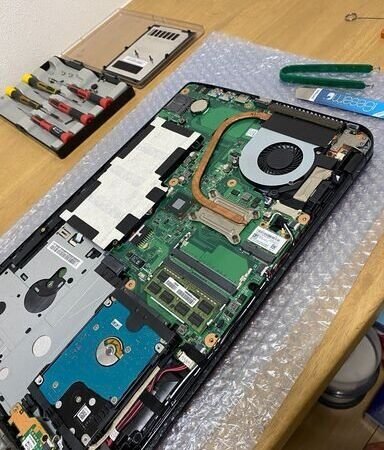
How can I speed up an old laptop without buying a new one? Before you spend £500 on a replacement, know this: most “slow” laptops aren’t worn out — they’re choked by a spinning hard drive, starved of RAM, or drowning in background junk. I’ve revived dozens of sluggish laptops, and the transformation from a £60 SSD upgrade genuinely feels like a new machine.
Here’s what actually works, roughly in order of impact per pound.
The SSD Upgrade: The Single Biggest Fix
If your laptop still has a mechanical hard drive (HDD), replacing it with an SSD is the highest-impact upgrade in all of computing. I’m not exaggerating: boot times drop from minutes to seconds, programs launch instantly, and the whole machine feels a decade younger. A 500 GB SATA SSD costs £35–£50, and 1 TB around £60–£80.
Is it hard? On most laptops it’s 4–8 screws and a video guide for your exact model. You’ll need a small Phillips screwdriver and ideally a £10 USB-to-SATA cable to clone your existing drive first (free cloning software like Macrium Reflect does the job). Total time: about an hour if you’ve never done it.
Two caveats: some ultra-thin modern laptops have soldered storage that can’t be upgraded — check your model’s specs first. And if the laptop is already on an SSD but still slow, the drive isn’t your problem; read on. How Do I Back Up My Photos Without Paying for Cloud Storage
Free Software Fixes That Actually Help
1. Kill startup programs. On Windows: Task Manager > Startup apps — disable everything you don’t need at boot (Spotify, updaters, chat apps). This alone can halve boot time. 2. Check what’s eating resources: Task Manager > Processes, sorted by CPU/Memory/Disk. If a browser or background service is constantly maxing things out, you’ve found your culprit.
3. Uninstall bloatware. Be ruthless — trial antivirus suites, manufacturer utilities, games you never opened. 4. Tame your browser: a dozen extensions and 40 tabs will cripple any machine; try bookmark-and-close discipline. 5. Fresh Windows install as the nuclear option: back up, reinstall clean, and marvel. It’s an afternoon’s work and fixes years of accumulated cruft.
6. More RAM helps if you have 4 GB and constantly multitask — 8 GB is the sweet spot, and a 4 GB stick is £15–£25. Check your laptop supports it first (many thin models have soldered RAM). 7. Clean the fans: if it’s hot and loud, dust-clogged cooling forces the CPU to throttle. A can of compressed air through the vents works wonders. Crucial’s tool to check your laptop’s upgrade options
- An SSD upgrade (£35–£80) transforms any HDD laptop
- Disable unnecessary startup programs first — it’s free
- 8 GB RAM is the realistic minimum for Windows in 2026
- A clean Windows reinstall fixes years of accumulated slowdown
- Dust-clogged fans cause thermal throttling — blow them out
When to Stop Fixing and Replace It
Be honest about the patient. If the laptop is 8+ years old with a pre-2015 processor, soldered 4 GB RAM, a failing battery and a dim screen, you’re throwing good money after bad — even an SSD can’t fix an exhausted CPU struggling with modern websites. My rule: if total sensible upgrades exceed £100–£120 on a machine worth £150, put the money toward a replacement.
Also consider a lightweight Linux distro (like Linux Mint or Xubuntu) as a last resort for very old hardware — it can make a 2012 laptop perfectly usable for browsing and documents. It’s free, though there’s a learning curve.
But for the huge middle ground — a 4–7 year old laptop with an HDD and 4–8 GB RAM — the £50 SSD swap is almost always worth it. I’ve done this for family members half a dozen times and every single one thought I’d bought them a new laptop. How Do I Stop My Smart TV from Tracking What I Watch Which? guide to speeding up a slow laptop
The Two-Minute Health Check Before You Spend Anything
Before buying parts, run this diagnostic. Check drive type: Task Manager > Performance > Disk — if it says HDD, the SSD upgrade is your answer. If it says SSD already, look elsewhere. Check RAM pressure: with your normal apps open, is memory above 80%? Then RAM helps. Below 60%? RAM isn’t the problem. Check temperatures: free tools like HWMonitor show CPU temps — idling above 70°C means dust/cooling problems, not slowness problems.
Check disk space: a drive over 90% full slows everything (no room for temp files and updates) — free up 15–20% before spending a penny. This five-minute check tells you whether to buy an SSD, buy RAM, clean the fans, or just delete things — and stops you spending £60 fixing the wrong bottleneck. The number of people who’ve bought RAM for a laptop choked by a full hard drive is higher than anyone admits.
Key Takeaways
- SSD first — nothing else comes close for the money
- Startup programs and browser tabs are the usual free-fix culprits
- Don’t spend over £100 upgrading a laptop worth £150
- Check RAM/storage are actually upgradeable before buying parts
- Linux can rescue truly ancient hardware for basic tasks
Frequently Asked Questions
Will an SSD work in any old laptop?
Almost any laptop with a standard 2.5-inch SATA drive bay — which is most laptops from roughly 2008–2020. Check your model’s manual; some ultrabooks have soldered or proprietary storage.
Is it difficult to clone my drive to the new SSD?
No — free tools like Macrium Reflect walk you through it with a USB-to-SATA cable, and there are model-specific video guides for everything.
How much RAM do I need in 2026?
8 GB for comfortable Windows use; 16 GB if you edit video or run virtual machines. 4 GB is survivable on ChromeOS or Linux, painful on Windows.
Is it worth upgrading a laptop with a cracked screen too?
Rarely — a screen replacement (£80–£150+) plus an SSD plus RAM quickly exceeds the machine’s value. One upgrade on an otherwise healthy laptop: yes. A repair bill stacking on an upgrade bill: put the total toward a refurbished replacement instead.
Wrapping Up
Start free (startup programs, bloatware, browser discipline), then spend smart: a £35–£80 SSD is the miracle upgrade for any laptop still spinning a hard drive. Add RAM only if you’re stuck at 4 GB. And know when to stop — if the machine needs more than £100 of parts, that money belongs in the replacement fund instead. How Do I Stop My Apps from Using Mobile Data in the Background

