The Best AI Photo Editing Apps for Your Phone
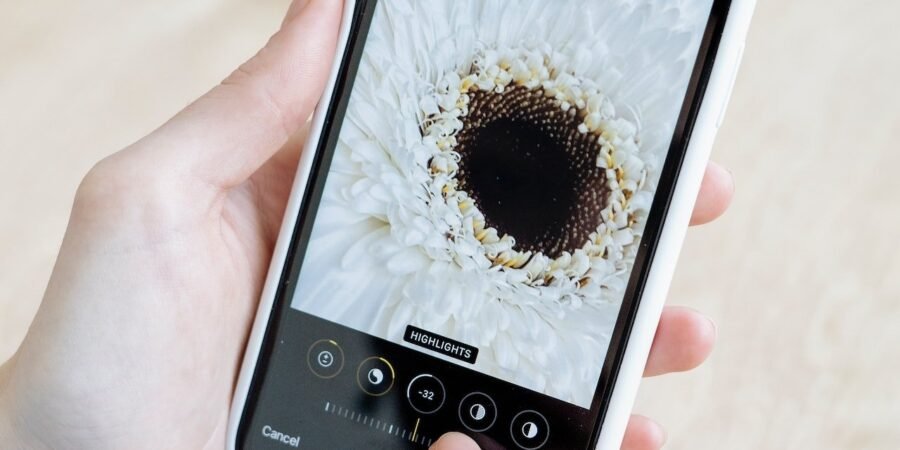
What’s the best AI app for editing photos on your phone? The answer has changed dramatically — AI has turned phone editing from “a few filters” into something approaching a professional studio in your pocket. Remove photobombers, fix lighting, sharpen blurry shots, even change the sky: all in seconds, all on your phone.
Here’s what’s actually worth using, what each one does best, and how to get great results without the telltale AI look.
What is the best AI app for editing photos on my phone?
This guide walks you through this topic step by step — what it means in practice, the options open to you, the mistakes worth avoiding, and the practical next steps. Everything is in plain English, with UK-specific advice throughout, so you can read it straight through or dip into whatever matters most to you.
The Top Picks
Google Photos (free) — best all-rounder
If you’re on Android (or use Google Photos on iPhone), you already own a superb AI editor. Magic Eraser removes unwanted objects and people, Photo Unblur sharpens soft shots, and Magic Editor can reposition subjects and extend backgrounds. For most people, this is all they’ll ever need — and it’s free.
Snapseed (free) — best for control
Google’s free Snapseed remains the enthusiast’s choice: selective adjustments, healing brush, and genuinely powerful tools without a subscription. Less “AI magic”, more precise control — ideal if you want the photo to still look like your photo.
Lightroom Mobile (free tier) — best for serious editing
Adobe’s free tier includes excellent AI masking (select sky, subject, background separately), Denoise, and pro-level colour tools. If you shoot a lot and want to learn proper editing, start here.
Remini — best for rescuing bad photos
Old, blurry, low-resolution photos — family archives, scratched prints — Remini’s AI enhancement is startlingly good at reconstructing faces and detail. The free tier is limited but enough to test; it’s the go-to for restoring old family photos (pair it with our guide to organising family photos with AI).
Canva / Picsart — best for social content
If your photos are destined for Instagram or your business page, these combine AI editing with templates, text, and design. Quick, polished, shareable.
What AI Editing Does Brilliantly
- Object removal: tourists, bins, photobombers — gone in one tap, with the background plausibly reconstructed.
- Lighting rescue: harsh shadows softened, backlit faces recovered, night shots brightened without the mush.
- Portrait enhancement: skin smoothing, eye brightening, background blur — use sparingly.
- Upscaling: turning small or cropped images into usable larger ones.
- Style transfer: making a dull photo look golden-hour warm or dramatically moody.
The Traps: When AI Editing Goes Wrong
- The plastic look. Over-smoothed skin and over-processed HDR scream “AI edited”. Dial every effect back 30% from your first instinct.
- Hallucinated details. AI “enhancement” sometimes invents details — wrong text on signs, extra fingers, plausible-but-fake textures. Zoom in and check.
- Authenticity matters. For business, property, or journalistic photos, heavy AI alteration can mislead — and in some contexts (estate agent photos, anyone?) erode trust. Keep edits honest.
- Your data. Free editing apps may use your photos for training or show them in ads. Check permissions, as we discuss in our guide to data and free AI tools.
Quick Workflow for Great Results
- Start with the basics: straighten, crop, fix exposure. 80% of “bad” photos are fixed here.
- Remove distractions with Magic Eraser or equivalent — one or two objects, not a full scene rebuild.
- Enhance selectively: brighten the subject, not the whole image.
- Stop early. Compare with the original (most apps let you hold to preview). If you can’t tell what you changed, you’ve probably done it right.
The Verdict
For most people: Google Photos (or Apple Photos’ newer AI cleanup tools on iPhone) covers everything, free. Enthusiasts should add Snapseed or Lightroom Mobile. Archivists restoring old photos: Remini.
The best AI photo app isn’t the one with the most features — it’s the one whose results still look like real life, only better. Edit with a light touch, check your work zoomed in, and remember: the goal is a great photo, not a demonstration of AI.
Getting the Most From AI — Safely
AI is a powerful helper here, but a little know-how separates great results from mediocre ones. These principles apply whatever you’re using it for.
Be specific in your prompts. The single biggest factor in AI output quality is input quality. Include your context, your constraints, and what a good result looks like. A vague request gets generic advice; a detailed one, tailored to your situation, gets something you can actually use.
Verify important outputs. AI writes confidently about things it has wrong — dates, prices, rules, facts. Treat AI output as a smart first draft, not a final answer. Cross-check anything that matters (money, legal, health, or anything you’ll publish or act on) against authoritative sources.
Protect your privacy. Don’t paste personal details, financial information, or other people’s data into free AI tools unless you’ve checked the privacy settings and opted out of training. The convenience isn’t worth the exposure, and it takes two minutes to check.
Keep the human in charge. AI suggests; you decide. That’s the right relationship here and everywhere else — especially where judgement, ethics, or accountability are involved. The people getting the best results from AI aren’t the ones who delegate most to it; they’re the ones who direct it best.
Stay current. AI tools change fast — new features, new limits, new best practices. What works today might be outdated in six months. A quick check of current guidance now and then keeps you getting the best from the tools rather than coasting on old habits.
Key Takeaways
- Be specific with AI tools — detailed, contextual prompts get dramatically better results.
- Always verify AI output on anything important: facts, figures, and advice.
- Protect your privacy: check settings and avoid sharing sensitive data with free tools.
- Keep humans in charge of decisions — AI advises, you decide.
For official guidance on this topic, see Which?’s tech reviews.

